How can Enterprise clients migrate their sites to new clusters?
As explained in our article about moving endpoints to different clusters, a new full sync is needed to finish the process. During that synchronization, site searches will stop using ElasticPress.
Enterprise clients can use the ElasticPress Migration Plugin. It is an add-on for the ElasticPress plugin that helps you migrate from one ElasticPress.io endpoint to another. It keeps your site connected to the legacy endpoint while you sync your content with the new endpoint.
If the new endpoint causes issues, such as incompatibility with custom code, you can point your site back to the legacy endpoint using this plugin without needing to resync your website. This lets you continue running ElasticPress features on your website while you debug.
How to Use the ElasticPress Migration Assistant Plugin
1. Download the Plugin
Get the plugin from this link or install it using Composer.
2. Install and Activate the Plugin
After activation, go to ElasticPress > Settings. You will see a new section at the bottom called Legacy ElasticPress.io Credentials. This section automatically prefills your current endpoint details:
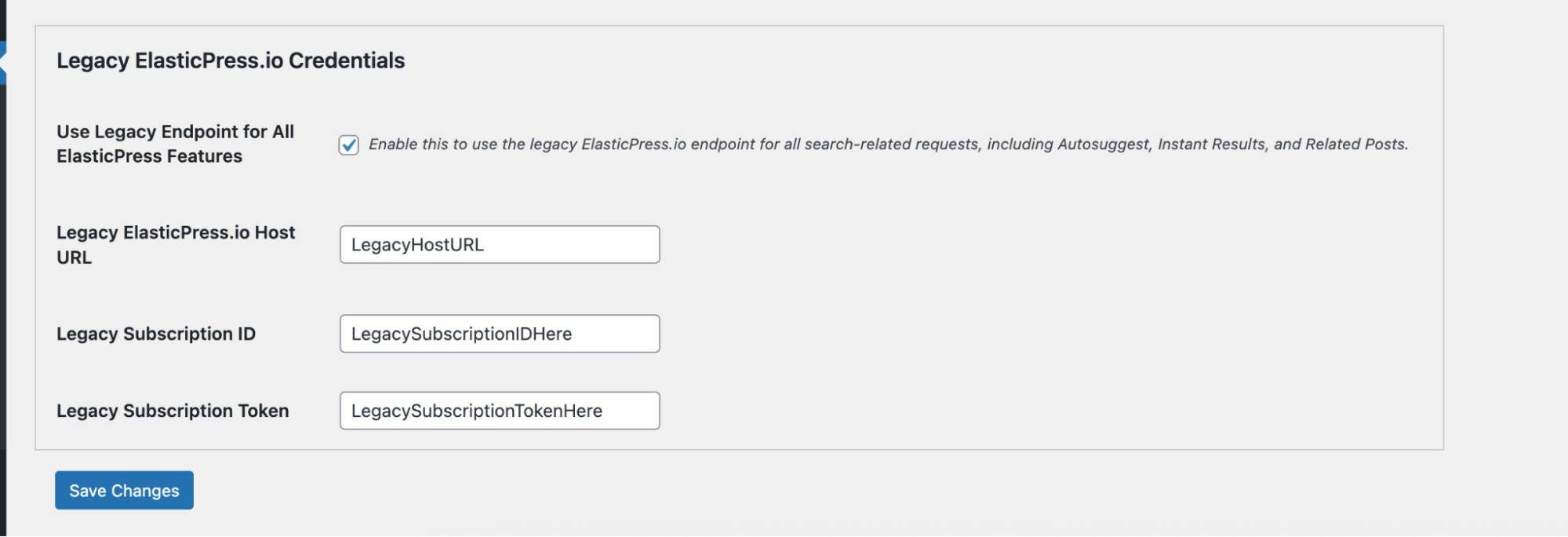
3. Add New Connection Details
a. At the top section of the settings page, enter the new connection details:
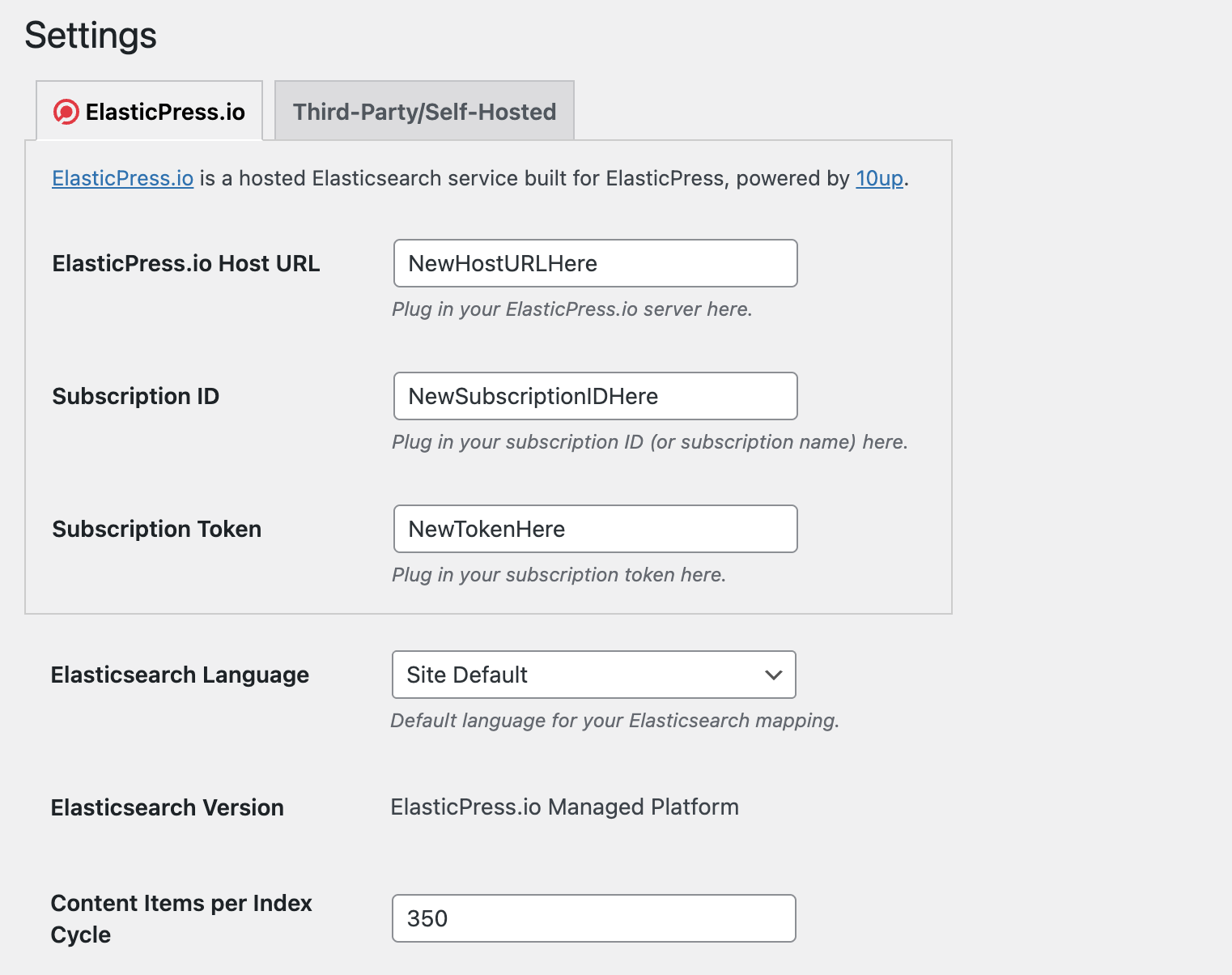
b. Check the option “Enable this to use the legacy ElasticPress.io endpoint” under “Legacy ElasticPress.io Credentials”
c. Click Save Changes.
Your site now uses the legacy endpoint for all ElasticPress features except syncing. You can sync your content with the new ElasticPress.io endpoint while your frontend searches continue working through the legacy endpoint.
4. Switch to the New Endpoint
When syncing is complete, and you are ready to switch, uncheck the option “Enable this to use the legacy ElasticPress.io endpoint” under Legacy ElasticPress.io Credentials (ElasticPress > Settings), and save your changes.
If you run into issues with the new endpoint during testing, re-enable the legacy credentials in the settings.
After you confirm the new endpoint works correctly on your site, contact support to have the legacy endpoint removed.